
Extracting data
Extraction has two user-facing resources:
- A Robot is the stable extraction resource for one host and country.
- A Run uses a completed Robot to crawl pages and produce Captures.
You create the Robot once, wait for its build to complete, then reuse it for manual and scheduled Runs.
Extraction workflow
- Create or retrieve the Robot for the target host and country.
- Monitor that Robot while Extralt generates and validates its crawler and scraper.
- Start a Run after the Robot reaches
completed. - Monitor the Run and inspect or export its Captures.
Create a Robot
Dashboard
Go to Extract > Robots > New. Enter the target storefront's homepage URL and select the country where Extralt should access it.
After you select Create, the dashboard opens the Robot details page for the returned Robot ID. This happens whether the Robot was newly created or already existed for that host and country.
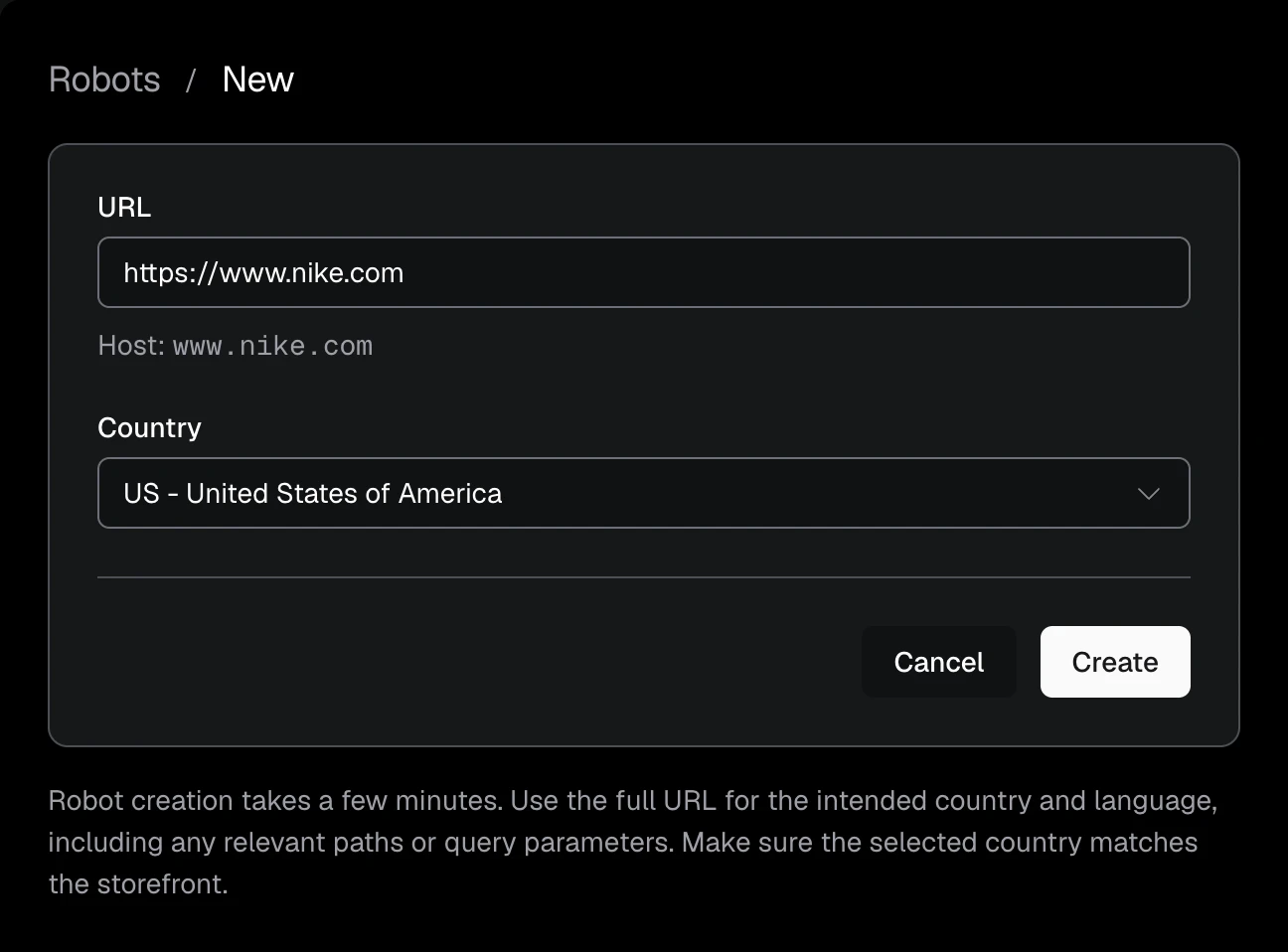
Use the homepage for the storefront you want to extract, and select the matching country.
API
export EXTRALT_API_KEY="your-api-key"

curl -s -X POST "https://api.extralt.com/v1/extract/robots" \
  -H "Authorization: Bearer $EXTRALT_API_KEY" \
  -H "Idempotency-Key: robot-create-example-1" \
  -H "Content-Type: application/json" \
  -d '{
    "url": "https://example-store.com",
    "country": "US"
  }' | jq
The response is the Robot, with its stable ID, its build status, and
finished, which turns true once the build completes or fails.
202 Acceptedmeans a new Robot was created and its build was queued. AfailedRobot for that host and country is built again, with the same response.200 OKmeans the Robot already existed for that host and country.
Creating a Robot doesn't read the store. Its build starts by reading the URL's
page from the selected country. It follows redirects that stay on the store's
site, such as nike.com to www.nike.com/fr/, or brand.com to brand.fr,
and the Robot moves to the host the page lands on. The build then detects the
store's platform and the page's language, which the Robot keeps for its builds.
The Robot's language is null until then.
The build refuses a store that redirects to another site, that doesn't sell
products online, whose language can't be read, that lands on a host you already
have a Robot for, or that your plan can't build. The Robot then fails with a
refusal and a status_reason saying why.
Every response identifies the same user-facing resource. There is no separate Robot Build resource.
An existing Robot may already be completed. A new one is ready in seconds
when Extralt has built the same store for that country and page language
before. Otherwise, Extralt analyzes the source, generates extraction logic,
validates it, and compiles it. Build time depends on the source and the
validation work required.
Monitor the Robot build
The Robot exposes its build status throughout its lifecycle:
| Status | Meaning |
|---|---|
pending | The build is queued |
building | Extralt is checking the store, then analyzing the source and preparing the Robot |
completed | The Robot is ready for Runs and Schedules |
failed | The build failed or refused the store; status_reason says why, and refusal is set for a refusal |
A refused Robot's refusal is one of:
| Refusal | Meaning |
|---|---|
not_store | The page doesn't sell products online |
unknown_language | The page's language couldn't be read |
unreachable | The page answered with a client error, or isn't a public HTTPS page |
off_site_redirect | The page redirects to another site; create the Robot from that URL instead |
needs_scale | No supported platform runs the store, and custom Robots need Scale |
duplicate | The page lands on a host you already have a Robot for |
unavailable | The store couldn't be checked; create the Robot again to retry |
A Robot build cannot currently be stopped once it has started.
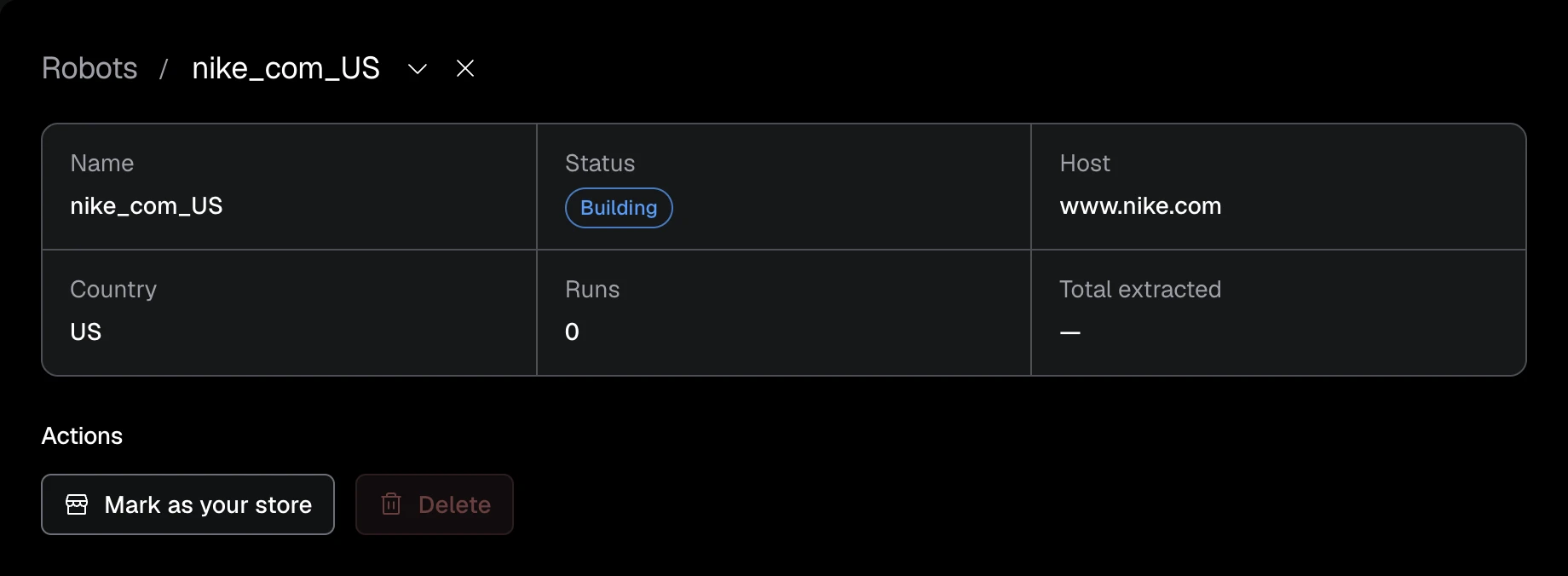
Dashboard
The Robot details page updates as the build moves from pending to building
and then to a final status. Keep this page open to monitor the build, or return
to it from the Robots list.
API
Read the Robot by the ID returned from creation:
curl -s "https://api.extralt.com/v1/extract/robots/$ROBOT_ID" \
  -H "Authorization: Bearer $EXTRALT_API_KEY" | jq
With cURL, poll until the status is completed or failed. The SDKs do this
for you: create returns the built Robot and raises JobFailedError if its
build fails. Only completed Robots can start Runs or Schedules.
Robot identity and naming
Within an organization, a Robot is unique for a (host, country) pair. A
leading www. is ignored for identity, so www.nike.com and nike.com in the
same country resolve to the same Robot. A Robot's host is where its page
landed, so it can differ from the URL you created it from when the store
redirects within its site.
The page a Robot is created from sets its language. For a store published in several languages, create the Robot from a page in the language you want.
Robot names are derived and cannot be edited. Extralt removes a leading
www., replaces dots with underscores, and appends the uppercase country code.
For example, www.nike.com in the United States becomes nike_com_US.
The Robot's run_count records how many Runs have been created for it. Each new
Run increments that counter and is named <robot_name>_<counter>, such as
nike_com_US_1.
Manage Robots
Dashboard
The Robots list includes Robots in every build status. Its columns are Name, Status, Reason, Runs, and Created. A Robot's name is its host and country, so the list does not repeat them.
Select a Robot to open its details. New Run, List Runs, and
New Schedule are available only when the Robot is completed. Robots
cannot be renamed.
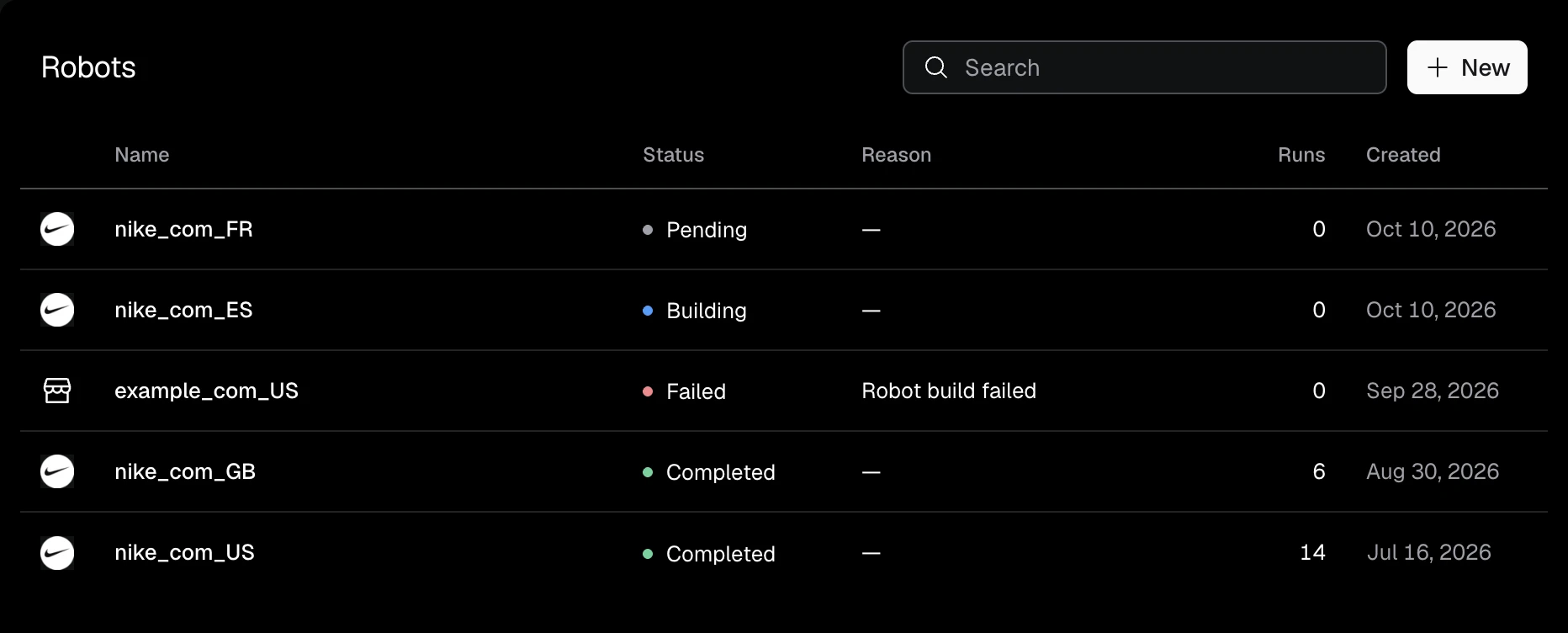
Select a completed Robot to start a Run, create a Schedule, or view previous Runs.
API
List all Robots in the organization:
curl -s "https://api.extralt.com/v1/extract/robots" \
  -H "Authorization: Bearer $EXTRALT_API_KEY" | jq
GET /v1/extract/robots/{id} returns one Robot with its name, host, country,
language, status, status reason, refusal, Run count, and timestamps.
DELETE /v1/extract/robots/{id} returns 204 No Content. An active build or
Run must finish before its Robot can be deleted. Deleting a Robot also removes
its Schedules.
Start a Run
Dashboard
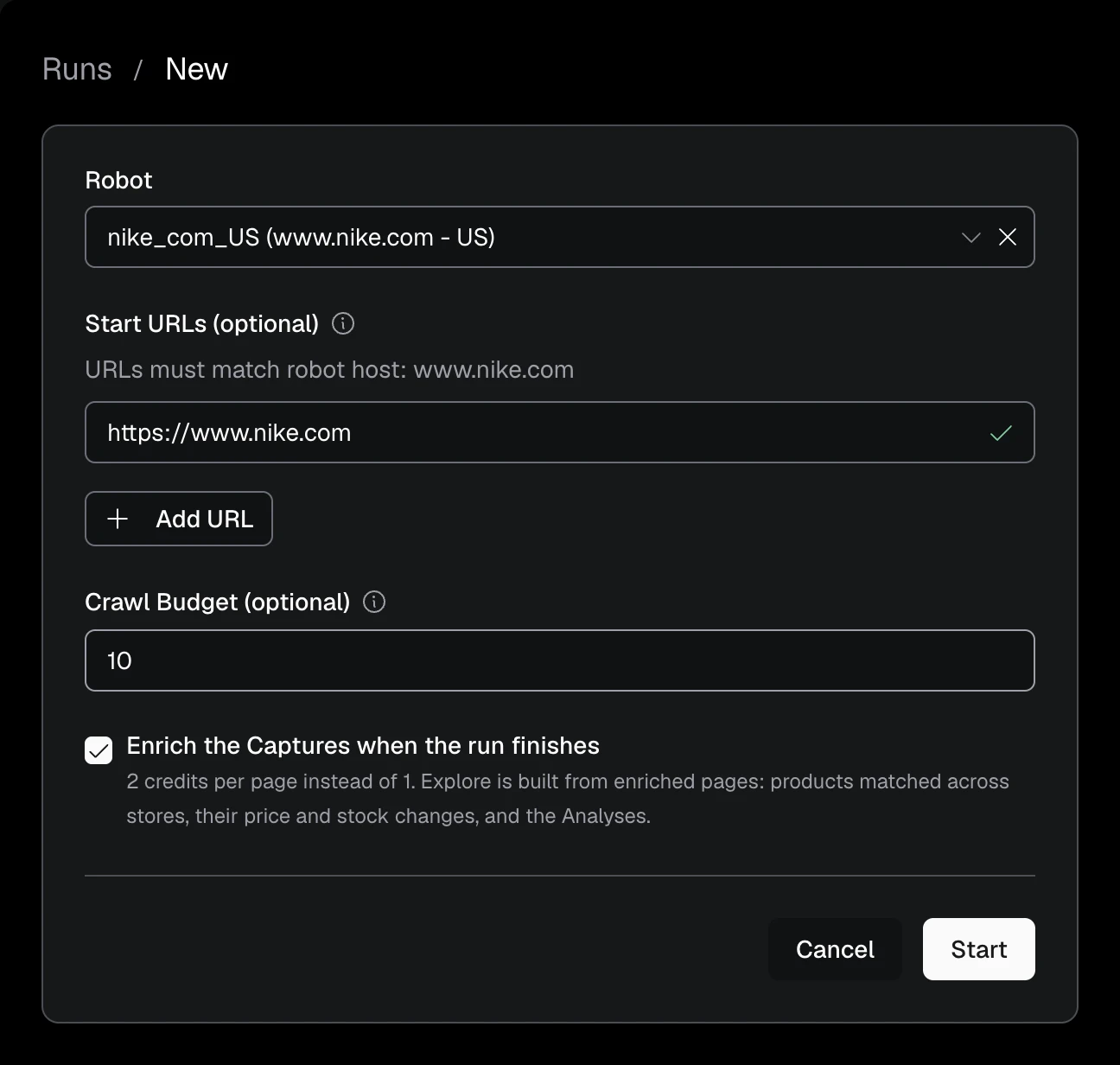
Go to Extract > Runs > New, or select a completed Robot in the Robots list and choose New Run. The selector contains only completed Robots.
Optionally provide start URLs, a crawl budget, and automatic enrichment. Start URLs must use the selected Robot's host. After you select Start, the dashboard opens the new Run's details page.
API
curl -s -X POST "https://api.extralt.com/v1/extract/runs" \
  -H "Authorization: Bearer $EXTRALT_API_KEY" \
  -H "Idempotency-Key: run-create-example-1" \
  -H "Content-Type: application/json" \
  -d '{
    "robot_id": "'$ROBOT_ID'",
    "budget": 100
  }' | jq
The response is 202 Accepted with the new Run. The SDK call waits for the Run
and returns it finished; pass wait=False ({ wait: false } in TypeScript) to
get it back at once.
| Parameter | Required | Description |
|---|---|---|
robot_id | Yes | A completed Robot in your organization |
start_urls | No | Crawl entry points on the Robot's host. The Robot uses its defaults when omitted. |
budget | In the SDKs | Maximum number of Captures to produce. The SDKs require a number or "unlimited"; the API crawls without a limit when it is omitted. |
auto_enrich | No | Start an Enrichment after the Run completes. Defaults to false. |
A Run normally starts from the Robot's own default URLs. To crawl only part of a store, such as one collection, pass start URLs on the Robot's host:
curl -s -X POST "https://api.extralt.com/v1/extract/runs" \
  -H "Authorization: Bearer $EXTRALT_API_KEY" \
  -H "Idempotency-Key: run-create-example-2" \
  -H "Content-Type: application/json" \
  -d '{
    "robot_id": "'$ROBOT_ID'",
    "start_urls": ["https://example-store.com/collections/shoes"],
    "budget": 100
  }' | jq
Monitor and manage Runs
| Status | Meaning |
|---|---|
pending | The Run is queued |
starting | The Run is starting |
running | The Robot is crawling and extracting |
restarting | A restart is being applied |
completed | The Run finished successfully |
failed | The Run encountered an unrecoverable error |
stopped | The Run was stopped manually |
Dashboard
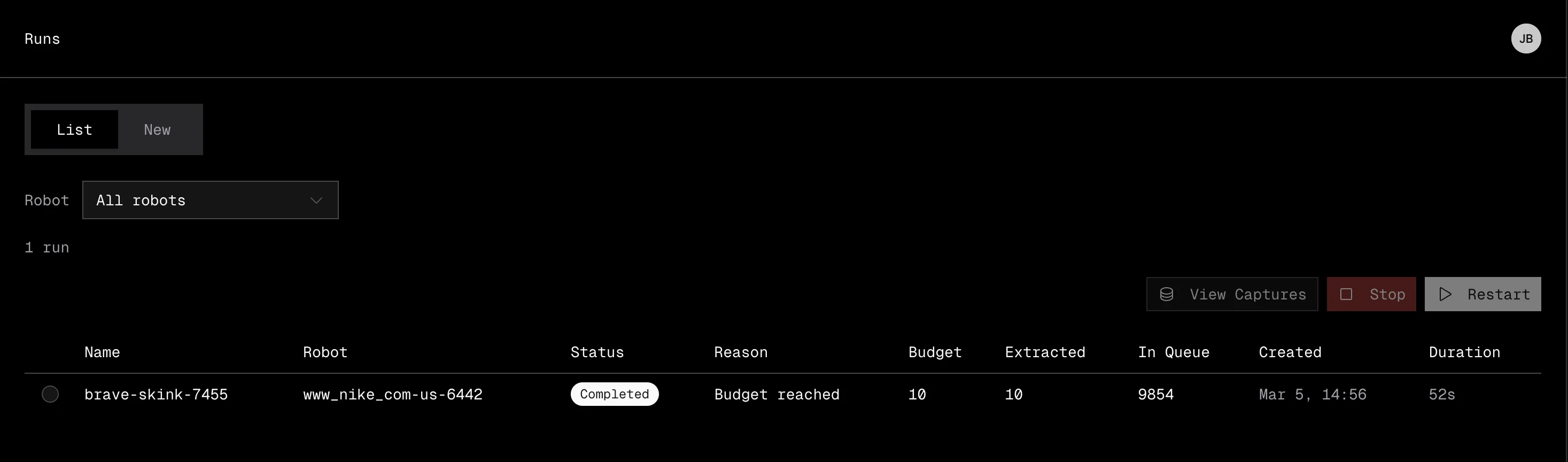
The Runs list shows Name, Status, Reason, Extracted (out of the budget, when the Run has one), Started, and Duration. A Run's name starts with its Robot's. Select a Run to view its details or Captures.
You can stop a pending, starting, restarting, or running Run. You can
restart only a stopped or failed Run, optionally with a new budget. A
restart keeps the same Run ID and name.
API
Read a Run until it reaches completed, failed, or stopped. In the SDKs,
wait() does this for a Run started elsewhere or with wait=False, and raises
JobFailedError if the Run failed:
curl -s "https://api.extralt.com/v1/extract/runs/$RUN_ID" \
  -H "Authorization: Bearer $EXTRALT_API_KEY" | jq
Stop an active Run:
curl -s -X POST "https://api.extralt.com/v1/extract/runs/$RUN_ID/stop" \
  -H "Authorization: Bearer $EXTRALT_API_KEY"
Restart a stopped or failed Run with an optional replacement budget:
curl -s -X POST "https://api.extralt.com/v1/extract/runs/$RUN_ID/restart" \
  -H "Authorization: Bearer $EXTRALT_API_KEY" \
  -H "Idempotency-Key: run-restart-example-1" \
  -H "Content-Type: application/json" \
  -d '{ "budget": 200 }' | jq
Stop returns the Run, stopping or already stopped. Restart returns
202 Accepted with the same Run, now restarting and no longer finished;
the SDK call waits for it to finish again.
Concurrency and credits
| Plan | Concurrent Runs |
|---|---|
| Start | 1 |
| Scale | Unlimited |
Each successful product-page Capture costs 1 credit. A new Run requires enough credits for at least one Capture.
Use the Captures
When the Run finishes, its details page lists its Captures, and Download As exports them as JSONL or Parquet. To browse Captures across Runs, go to Extract > Captures and filter by Robot or Run.
See Working with Captures for browsing and export options, or Schedules to create recurring Runs.